
From signup to your first verified result.
Letco is a platform through which you remotely drive an AI developer running on your own machine — you control and watch it from anywhere in the browser, with full history. This page walks the whole setup, step by step.
Before you start
Total time to first result: about 30 minutes
A Letco account
Free during the pilot. You register in the browser — no installation needed for this step.
Your own AI subscription
Letco runs on the AI plans you already pay for — Claude, Gemini, Codex or Grok. Bring the subscription or credentials for the coding agent you want to drive.
A git repository on your machine
Letco works on directories you already have checked out. Any git remote is fine — the agent works against your local working copy.
A supported operating system
Linux (Ubuntu, Debian, Fedora, RHEL, openSUSE, Alpine), macOS, or Windows 10/11 including WSL2. The installer ships native binaries — no Node.js or build tools required.
Where the AI runs
On your own machine
The default. A small agent runs on your computer, so the AI works with your real environment, tools and repositories. Your source code never leaves your machine, and you drive the whole thing from the browser or your phone.
Best for: existing repositories, private code, local toolchains and databases.
On your own infrastructure
Run the sandboxes on hardware you control — register your own local Kubernetes cluster and sessions execute there instead of in our cloud. For strict requirements the entire platform can be deployed on-premise, so sessions, stored content and encryption keys never leave your environment.
Best for: regulated environments, internal networks, and teams who want capacity without our cloud.
In Letco Cloud
Optional convenience, never a requirement. No local install: each session runs in an isolated sandbox or virtual computer with a default-deny network policy, destroyed when the session ends.
Best for: trying Letco out, machines you cannot install on, and bursts beyond your own capacity.
Step by step
- 15 min
Create your account and save the recovery phrase
Register and set up your encrypted space. Letco derives your encryption key from your password, so during onboarding you receive a one-time 24-word recovery phrase.
- Where in the app
- Register → Onboarding
- You should see
- You are signed in, and your recovery phrase is written down somewhere safe — a password manager or paper, not the same machine you work on.
- If it goes wrong
- Lose the recovery phrase and forget your password, and nobody — including Letco — can restore your stored content. It is the only fallback key. Save it before you click past the onboarding screen.
Your space, your data, your key.
- 210 min
Connect the device the AI will run on
The AI usually runs on your own machine through a small agent you install once. It gets direct access to your environment, tools and repositories, while you drive and watch it from the browser. Register the device in the app, copy the one-line install command it shows you, and run it in your terminal.
- Where in the app
- The onboarding that opens on your first sign-in walks you through this. To add another device later — or if you skipped onboarding — go to Settings → Devices → Register New Device.
- You should see
- The device appears in the list and flips to connected, showing live tool status from the agent. Verify locally with letco --version.
- If it goes wrong
- If the service reports “Waiting for setup…”, the device token never reached the agent — run letco setup --token <YOUR_TOKEN> and give it 30 seconds to pick up the config. If your shell reports “command not found: letco”, /usr/local/bin is missing from your PATH.
- Also in this step
- Once the agent is connected, Letco checks which AI developer tools are actually installed on that machine — Claude Code, Gemini CLI, Codex CLI. This is usually where you find out you are missing the one you meant to use. The check is not one-off: the agent re-detects every few minutes and reports back with its heartbeat, so if you install a tool afterwards the device's status updates on its own — no re-registering, no reconnecting.

- 35 min
Create a project and register its directories
A project represents a product or part of one. Under it you register the directories the AI is allowed to touch — each holding a git repository. One project can span several devices, and one device can host several projects.
- Where in the app
- If you stay in the onboarding, it creates your first project with you. Many people skip out right after connecting the device — then, and for every project after the first, go to Projects → Create New Project.
- You should see
- The project lists at least one directory bound to a connected device.
- If it goes wrong
- A directory that will not register usually is not a git repository yet, or sits outside the paths the agent is allowed to read. Run git init (or clone into the path) and re-add it.
A project = a product; its directories = where its code lives.
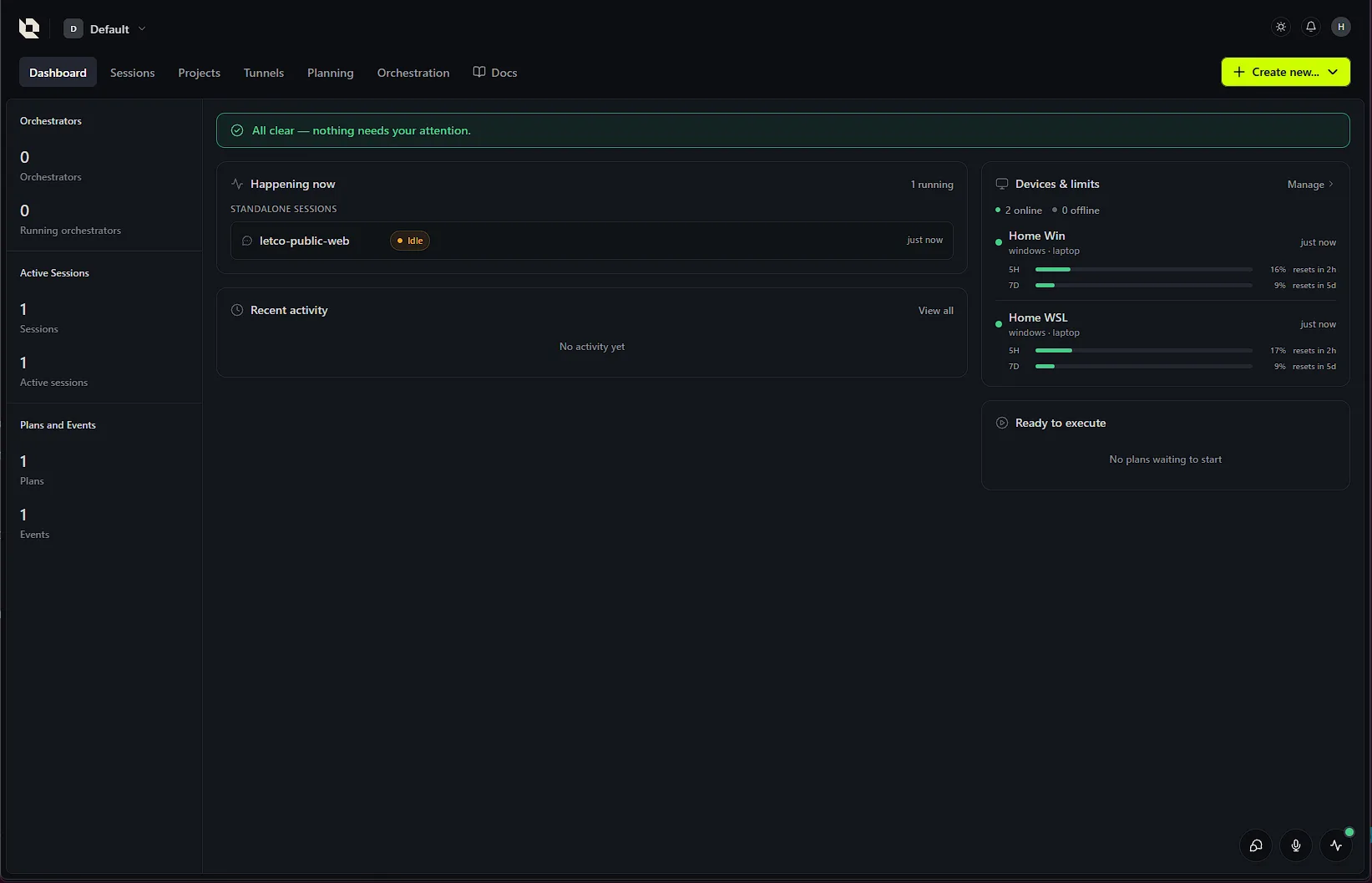
- 42 min
Run your first session
Start an interactive session and talk to the AI the same way you would in a terminal coding agent — only from the browser, from anywhere, even your phone. The conversation runs live and the whole history is saved, so you can leave, come back, continue, or share the session with a colleague.
- Where in the app
- Sessions → New Session
- You should see
- You pick a project and device, type a task, and watch the agent work in real time on the session detail page.
- If it goes wrong
- No device in the picker means the agent is not connected — go back to step 2 and check that the device still shows as connected.

- 515–30 min
Plan a larger task
For work bigger than a single session, describe the idea and let Letco run it as a four-stage pipeline — Analyze → Implement → Execute → Verify. Each stage is a sequence of steps that closes with a gate. The early stages produce the planning documents: analysis, requirements, test scenarios and implementation plans.
- Where in the app
- Planning → Create Planning Project
- You should see
- In Analyze you build the assignment in a guided conversation — from scratch, from existing documentation, or by importing an assignment you already have. Then you approve each gate and move on.
- If it goes wrong
- A gate that will not close is not a bug: the stage reports findings — something missing or inconsistent in the assignment. Resolve the findings and re-run the gate rather than skipping ahead.

- 6runs on its own
Execute and verify
Start the orchestrator in autonomous mode — it drives the approved plan to the end, running phases in parallel and asking you at uncertain points — or in supervised mode, where you launch each phase yourself. You can also schedule it into weekly time windows so it works overnight, and if AI usage nears your provider's limit it pauses and resumes itself. A verification pipeline then independently reviews the result: that it runs, plus quality, completeness, tests and documentation.
- Where in the app
- Orchestration → Control
- You should see
- Verification lists its findings. You can have them fixed and re-checked automatically, or judge them yourself, and only then confirm the work with Accept & Complete.
- If it goes wrong
- If the run stops and asks a question, that is the design — autonomous mode escalates instead of guessing. Answer continue, clarify, or abort.
An AI team that checks its own work — and you have the final say.

Ready? Create your first project.
The pilot is free and includes hands-on setup — a Letco engineer walks the steps above with you.